

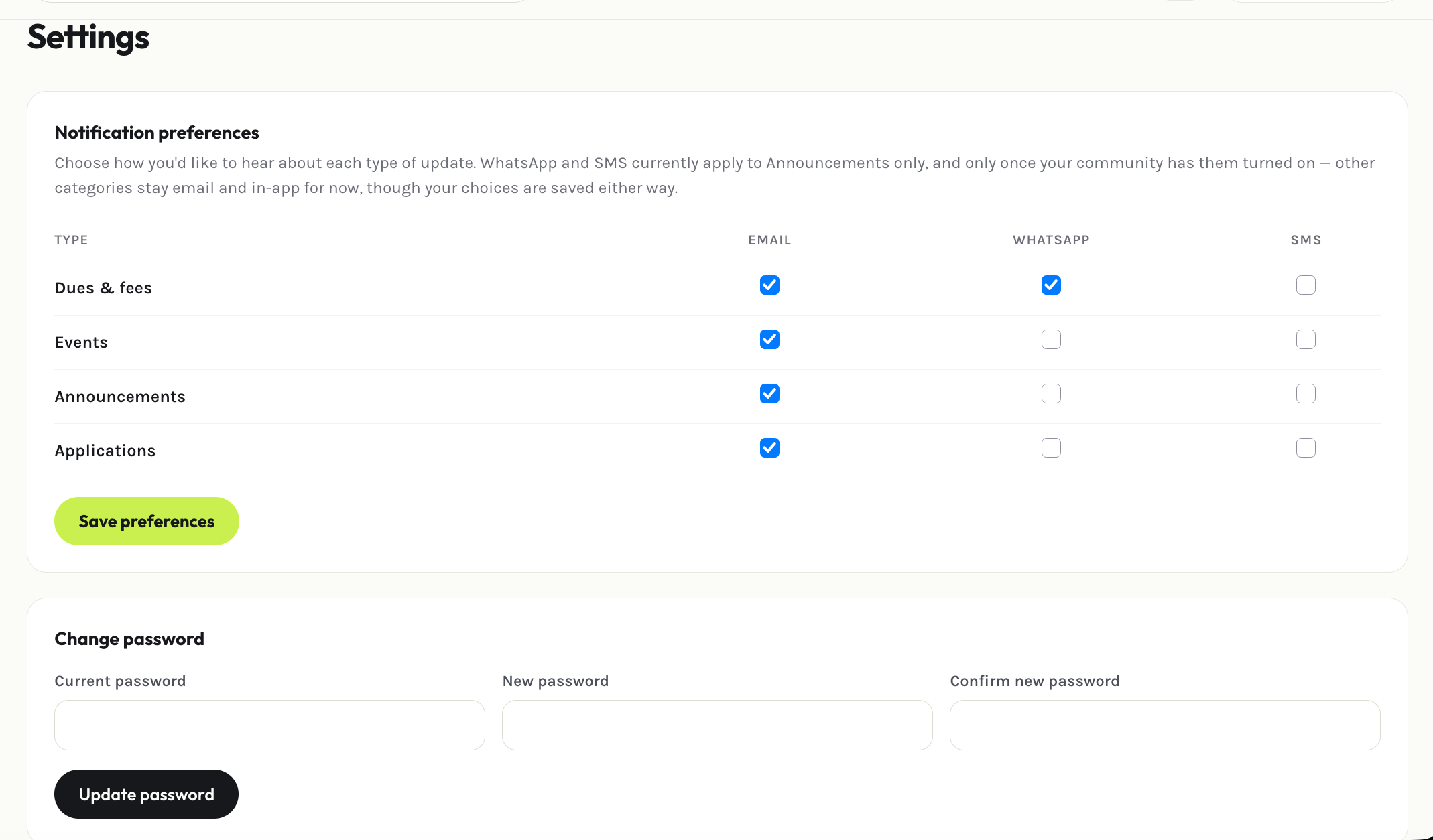
Changing your password
Enter your current password plus a new one (twice, to confirm), and save. You’ll get an email confirming the change — if you didn’t make it, contact your association’s admin immediately.Two-factor authentication
1
Start setup
Select Enable two-factor authentication. You’ll see a QR code.
2
Scan it
Scan the QR code with an authenticator app (Google Authenticator, Authy, or similar), then enter the 6-digit code it generates to confirm.
3
Save your recovery codes
You’re given a set of one-time recovery codes. Save them somewhere safe — they’re the only way back into your account if you lose your authenticator device.